
CloudEye 365
jeemakLibraries & Demo
3.3123.00 Reviews
- Version
- 4.11.0.11
- Installs
- 100.00K
- Age Rating
- Everyone
Screenshots
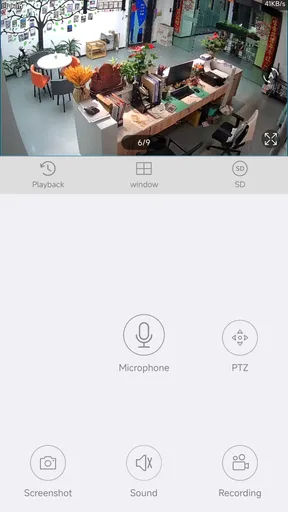
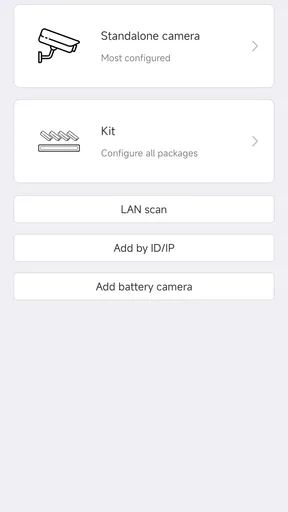
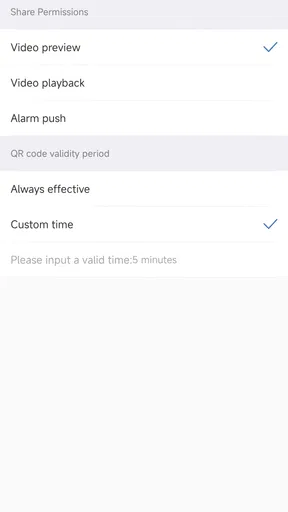
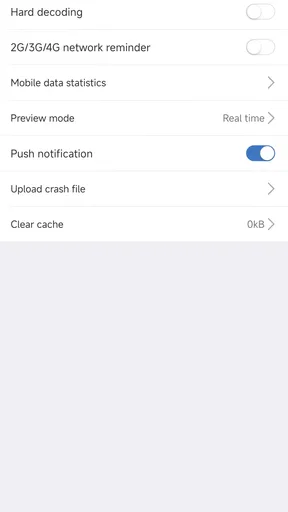
Our Review of CloudEye 365
 Analysis by Appyee
CloudEye 365 is the kind of app I would approach with a specific purpose rather than install casually. It belongs to the Libraries & Demo section, comes from developer jeemak, and presents itself as an easy-to-handle tool for working with a cloud-oriented viewing experience. That description is brief, so the real question is whether its focused approach suits the way you want to use your phone.
After spending time with it, my impression is that the app is most useful for people who want a straightforward interface instead of a large, feature-heavy platform. It is free, rated for Everyone, and available on devices running Android 6.0 or later. That broad compatibility makes it approachable, although an older supported operating system does not automatically mean every phone will feel equally comfortable using it.
My main advice is to judge CloudEye 365 by the simplicity of its workflow, not by the amount of information shown on its store page. It is a practical choice for a user who already knows why they need a cloud-viewing app. Someone expecting a complete cloud storage suite, a polished media organizer, or a detailed monitoring platform may find the experience too narrow.
How CloudEye 365 feels in its current form
The current version is 4.11.0.11, which tells me the app has moved beyond an initial experiment and has received continued version development. I would still avoid treating a version number as proof that every part of the experience is mature. What matters in daily use is whether the app gets you to the relevant screen quickly, keeps its controls understandable, and behaves consistently when you return to it later.
That is where the app’s “easy-handling” idea has value. The interface does not appear designed to overwhelm a first-time user with a maze of unrelated tools. For a focused utility, that restraint can be a strength. I prefer an app that makes its main purpose obvious over one that fills the screen with options I will never touch.
The trade-off is equally clear: a simpler layout can leave experienced users wanting more control. If you are looking for extensive customization, advanced organization, or a broad collection of connected services in one place, CloudEye 365 may feel more like a dedicated viewer than a complete ecosystem. I would choose it when clarity matters more than depth.
The app has passed the threshold of one hundred thousand installs and holds a 3.4 average from 419 ratings, alongside 115 written reviews. I read that combination as a sign of a mixed but meaningful user experience: enough adoption to show that the concept appeals to a real audience, but not a level of consensus that lets me call it universally dependable. In practical terms, I would test it with a small, low-risk routine before making it central to my day.
What the version history suggests
The current release is useful evidence of where the product stands, but it is not a promise about future additions. I see the version progression as a sign that jeemak has kept the app moving rather than abandoning it after launch. CloudEye 365 was released on March 13, 2023, and its present version shows an app that has had time to evolve since that starting point.
That evolution matters most to existing users. When an app reaches a later release, people who installed it earlier generally expect smoother navigation, fewer rough edges, and better handling of the same core tasks. I would update rather than remain on an old build, especially if the app is used for something I check regularly. Staying current also makes troubleshooting easier because support discussions and user advice are more likely to refer to the latest experience.
At the same time, I would not assume that a new version changes the app’s basic identity. CloudEye 365 still seems aimed at direct access and uncomplicated handling, not at becoming an all-purpose replacement for every cloud or device utility. That distinction is important: product evolution can improve the route through the app without turning it into a completely different category of tool.
A realistic everyday routine
Imagine that I keep the app on a secondary phone used for a home, office, or small workspace routine. I open it when I want to check a cloud-connected view, verify that the relevant source is available, and move on with my day. In that situation, the app’s value comes from reducing the number of steps between opening the phone and seeing what I need.
I would set up that routine deliberately. First, I would place the app where it is easy to reach rather than burying it in a folder. Then I would use the same checking sequence each time instead of exploring settings during an urgent moment. If the app requires a connection or a particular source to be available, I would test that arrangement when I have time, not for the first time when I am away from home.
A useful habit is to distinguish an app problem from a source problem. If the view does not appear, I would check the phone’s connection and the source itself before repeatedly tapping buttons. I would also close and reopen the app only after noting what happened, because that makes it easier to identify whether the issue is temporary or repeatable. This sounds simple, but it prevents a focused utility from becoming a source of unnecessary frustration.
For occasional checking, that workflow is sensible. For continuous professional supervision, I would be more cautious. A phone app can be convenient without being the right foundation for a system where missed information has serious consequences. In that case, I would compare it with the official service or hardware software connected to the same setup and use CloudEye 365 only if it proves reliable enough for the specific responsibility involved.
Who is likely to appreciate it
I think CloudEye 365 suits three kinds of people particularly well. The first is a user who wants a focused Android tool and does not need a broad collection of cloud-management features. The second is someone helping a less technical family member, because a simpler interface is easier to explain than a crowded dashboard. The third is a user with an older Android phone who needs an app compatible with Android 6.0 or newer.
Its Everyone content rating also makes it less intimidating as a general-purpose installation. That does not replace sensible privacy and account habits, but it does mean the app is positioned for a broad audience rather than a narrowly restricted one. I would still show a new user the basic workflow in person, especially if the app is connected to something important.
I would skip it if my priority were a full cloud drive, collaborative document editing, extensive media backup, or a mature multi-service dashboard. Those jobs are usually better handled by the official app for the service involved or by a larger platform built around that exact task. CloudEye 365 makes more sense when I want a direct viewing utility, not when I want to consolidate my entire digital life.
Where it differs from usual alternatives
The most obvious alternative is the official app supplied by the cloud or device service I am using. Official apps often have the advantage of tighter integration, clearer account support, and features designed specifically around that service. If I need account administration, subscription management, detailed device controls, or service-specific troubleshooting, I would start there.
CloudEye 365 can still be appealing when the official option feels too complicated for a simple viewing task. A focused app may be quicker for a person who only wants to check a view and leave. The downside is that simplicity can hide trade-offs: fewer controls may mean fewer ways to recover from an unusual setup, and a narrower purpose may require another app for everything outside that purpose.
It also differs from a general cloud storage app. Storage tools are built around files, folders, synchronization, and sharing. CloudEye 365 should not be judged by those standards. If my main need is moving photographs or documents between devices, I would choose a storage service instead. If my need is a direct cloud-related viewing workflow, this app is the more relevant experiment.
Compared with a browser shortcut, the app’s potential advantage is convenience. A dedicated application can feel more natural than opening a browser, finding a saved page, and signing in through a small screen. However, a browser can be the better fallback when I need a feature the app does not expose or when I want to avoid maintaining another installed application. I would keep that alternative in mind rather than treating CloudEye 365 as the only route.
Small workflow choices that make a difference
One practical tip is to test the app under the conditions in which I will actually use it. Checking a source on a fast home connection does not tell me how comfortable the experience will be on a weaker mobile connection. I would try the routine from the room or location where I expect to use it, then decide whether the app is convenient enough for that situation.
A second tip is to avoid changing several things at once. If I alter an account setting, switch networks, and update the app on the same day, I lose the ability to tell which change affected the result. With a focused utility, keeping a short note of the last successful setup can save time, particularly when another person is responsible for maintaining it.
A third insight is that an easy interface is not the same as an automatic workflow. CloudEye 365 may reduce the effort of opening and checking a view, but I would not assume it replaces reminders, scheduled checks, or a separate alert system. If I need to know that something changed without opening the app, I would verify that requirement independently and use another tool when necessary.
I would also keep the app’s role narrow on a shared phone. Rather than handing over unrestricted access to every cloud-related tool, I would create a simple routine and explain what each screen is for. This reduces accidental changes and makes the app easier for another person to use without turning a quick check into a technical lesson.
What existing users should expect from an update
For someone already using an older release, the sensible expectation is gradual refinement rather than a dramatic transformation. The current build may make the familiar workflow feel more polished, but I would still review the first session after updating. Check that the expected source is visible, confirm that the usual navigation still makes sense, and make sure the app remains comfortable on the particular phone being used.
That check is especially worthwhile on older hardware. Android compatibility beginning with version 6.0 is helpful, but support at the operating-system level does not guarantee identical speed, display scaling, or background behavior across every device. If the app feels slow, I would first try a clean restart and remove unnecessary background activity before deciding that the application itself is unsuitable.
I would also avoid updating immediately before an important trip or a critical monitoring period unless I have time to test. This is not a criticism unique to CloudEye 365; it is simply good practice for any utility that supports a routine I depend on. The app’s current version is the one I would evaluate, but my confidence would come from a successful test on my own setup.
Remaining gaps and sensible limits
The biggest limitation is the narrow information available through the app’s short store presentation. That does not make the application bad, but it means I would not install it expecting a clearly documented feature catalogue or a long explanation of every workflow. The best way to assess it is to start with one concrete task and see whether the app handles that task comfortably.
Another limitation is that a focused viewer may not satisfy users who want a single control center. I often prefer specialized tools when I know exactly what I need, but I also recognize the inconvenience of switching between several applications. If my daily routine includes storage, messaging, device administration, alerts, and sharing, I would probably favor an official or broader platform over adding CloudEye 365 as another separate piece.
The 3.4 average rating reinforces that balanced approach. I would not dismiss the app because the score is not outstanding, and I would not ignore the mixed signal either. Ratings can reflect different devices, expectations, and setups, so I would read the written feedback for patterns relevant to my own use. In particular, I would look for comments about the exact workflow I need rather than general reactions.
Privacy and access deserve practical attention as well. Before connecting anything important, I would identify which account or source the app will use, avoid sharing credentials casually, and remove access if I stop using the application. Those are sensible precautions for any cloud-related tool. The app’s Everyone rating describes its content suitability, not a substitute for careful account management.
What I would watch next
Future updates should ideally continue improving the central experience without sacrificing its approachable character. I would watch for clearer recovery when a source is unavailable, smoother return visits, and useful explanations when something needs attention. Those improvements would matter more to me than a large collection of extra buttons.
I would also watch how well the app keeps serving older Android devices while remaining comfortable on newer phones. Broad operating-system support is valuable, but the best version would make the same basic task feel clear across different screen sizes and performance levels. If later releases add complexity, I would hope the main viewing path remains easy to find.
For existing users, the most useful sign of healthy evolution will be consistency. An update should preserve the routine people already understand while making awkward moments easier to handle. For new users, I would treat each release as an opportunity to test the app with a small, reversible setup before relying on it more heavily.
CloudEye 365 is free, which lowers the cost of trying it. That makes my recommendation straightforward: install it when you have a defined cloud-viewing need, test it with your own connection and source, and keep the official alternative available until the routine proves dependable. I would recommend it to a friend who values a focused, uncomplicated tool, but I would steer someone seeking a complete cloud platform elsewhere.
Overall, CloudEye 365 is best understood as a practical specialist rather than an all-in-one solution. Its current version and continued development make it worth evaluating, while its modest average rating and focused scope call for realistic expectations. If its central workflow matches your needs, the free installation and broad Android compatibility make the experiment easy. If your needs extend beyond quick, direct access, a more comprehensive official app will probably be the better long-term choice.
Privacy and Permissions
See what permissions an app requests and how it handles your data.
- Device & app history
- retrieve running apps
- Location
- approximate location (network-based), precise location (GPS and network-based)
- Phone
- read phone status and identity
- Photos/Media/Files
- read the contents of your USB storage, modify or delete the contents of your USB storage
- Storage
- read the contents of your USB storage, modify or delete the contents of your USB storage
- Camera
- take pictures and videos
- Microphone
- record audio
- Wi-Fi connection information
- view Wi-Fi connections
- Device ID & call information
- read phone status and identity
- Other
- view network connections, pair with Bluetooth devices, access Bluetooth settings, change network connectivity, allow Wi-Fi Multicast reception, connect and disconnect from Wi-Fi, full network access, close other apps, control vibration, prevent device from sleeping
Verdict
Strengths of CloudEye 365
- Cloud-based access lets you view footage from multiple devices.
- Motion alerts can help you notice activity while away from home.
- Remote playback makes it easy to review recorded security footage.
- Supports monitoring of multiple cameras from one application.
- Useful for checking homes, offices, or other locations remotely.
Limitations of CloudEye 365
- Reliable internet is required for live viewing and cloud features.
- Cloud storage options may depend on a paid subscription.
- Notifications can become excessive in areas with frequent movement.
- Video quality may vary depending on the connected camera.
- Account and camera setup can take time for first-time users.
Similar Picks in This Category
View All
PGT: GFX, Launcher & Optimizer
Trilokia Inc.4.5

AusweisApp Bund
Governikus Service GmbH3.7

Cardboard
Google LLC3.2

Gamers GLTool with Game Tuner
Trilokia Inc.4.5

Multi Web Chat - Read Secretly
World Scan & Cleaner3.8

App Cloner Premium & Add-ons
App Listo1.9
Frequently Asked Questions
What is CloudEye 365 and what can it be used for?
CloudEye 365 is generally presented as a cloud-based security camera and remote monitoring application. After connecting compatible cameras or surveillance devices, users can view live video, review recorded footage, receive motion-related alerts, and manage more than one location from a mobile device. The exact features depend on the camera model, account type, and services enabled by the provider.
How do I connect my security camera to CloudEye 365?
To begin, install CloudEye 365, create or sign in to your account, and follow the in-app instructions for adding a device. Your camera may need to be powered on, reset, and connected to a supported Wi-Fi network before pairing. Some models require scanning a QR code or entering a device ID. If setup fails, check network compatibility, permissions, and the camera manufacturer’s instructions.
Can I watch live video and access recordings remotely?
Yes, CloudEye 365 is designed to let users access connected surveillance cameras remotely through an internet connection. Live viewing normally works from the device list, while recorded footage may be available through cloud storage, a memory card, or a recorder connected to the system. Availability, playback duration, video quality, and storage limits can vary by hardware and subscription plan.
Does CloudEye 365 send security notifications to my phone?
The application may provide alerts for events such as motion detection, depending on the capabilities of the connected camera and the settings enabled in CloudEye 365. Users can usually adjust notification preferences, detection zones, sensitivity, and schedules. For alerts to arrive reliably, notifications must be allowed in the phone’s system settings, the camera must remain online, and background restrictions should not block the app.
Is CloudEye 365 free, and is it safe to use?
Downloading CloudEye 365 may be free, but some cameras or advanced functions can require a paid service, cloud-storage plan, or equipment-specific subscription. Before registering, review the pricing and storage terms shown by the developer or camera provider. For safer use, download only from an official app store, create a strong unique password, keep the app updated, and secure the camera’s network and account.
